MS Project XML Import
Import projects from Microsoft Project by exporting as .xml format and using GlidePath’s MS Project importer.Feature Spec Reference
Module 1.9 — Import from MS Project XMLExporting from MS Project
Step 1: Export from MS Project
- In MS Project, open your project
- File → Save As
- Select Microsoft Project 2010 XML (.xml) format
- Save the file
Step 2: Import into GlidePath
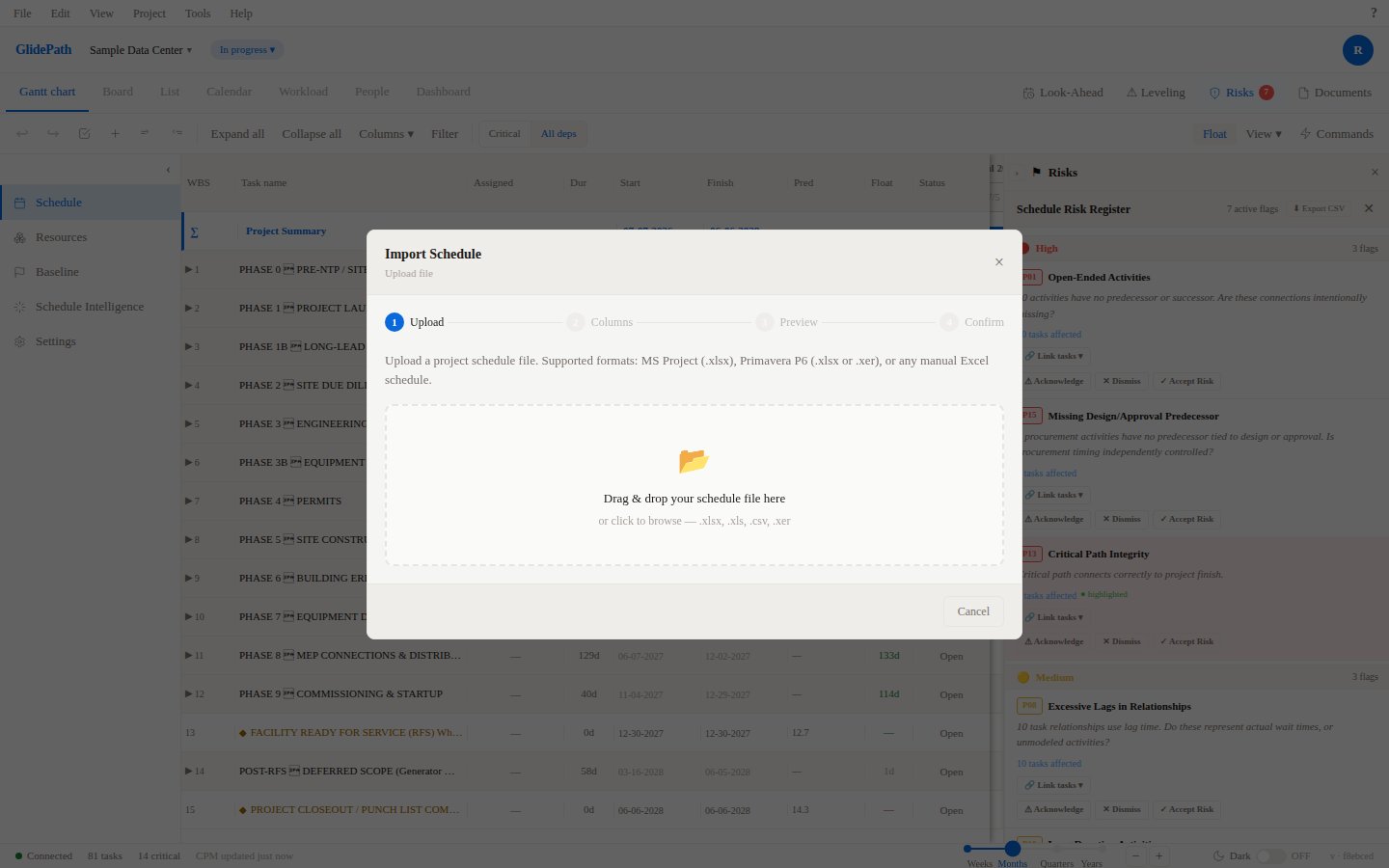
- Open GlidePath Import dialog
- Select MS Project XML format
- Upload the .xml file
- Column mapping happens automatically
- Review import results
Field Mapping
GlidePath automatically maps these MS Project fields:What Gets Imported
✓ Task names and WBS structure✓ Durations (converted from hours based on project calendar)
✓ Start and finish dates
✓ Dependencies (FS, SS, FF, SF relationships)
✓ Constraints (ASAP, ALAP, date constraints)
✓ Progress % (if captured in MS Project)
✓ Notes
✓ Resource names (basic association)
What Doesn’t Get Imported
✗ Resource calendars (availability)✗ Cost data (budgets, rates)
✗ Custom fields
✗ Baselines (you can re-capture baseline in GlidePath)
✗ Attachments or linked documents
Lag Conversion
MS Project stores lag in minutes; GlidePath converts to days:- 480 minutes lag = 1 day lag (8-hour working day)
- Conversion respects your project’s Hours Per Day setting
Screenshot
Tips
- Verify calendar: GlidePath assumes 8 hours/day; adjust if MS Project uses different hours/day
- Check dependencies: Review the Gantt chart after import to verify dependencies are correct
- Test first: Import a small project first to verify field mapping