Viewing and Editing Dependencies
Dependency lines on the Gantt chart give you a visual overview of how tasks connect. GlidePath renders these lines in real time as you add or change links.Feature Spec Reference
Module 4.3 — Dependency Line RenderingReading Dependency Lines on the Gantt
Line Appearance
Direction and Arrows
Each dependency line runs from the predecessor task bar to the successor task bar:- FS: Line exits the right end of the predecessor, enters the left end of the successor
- SS: Line exits the left end of the predecessor, enters the left end of the successor
- FF: Line exits the right end of the predecessor, enters the right end of the successor
- SF: Line exits the left end of the predecessor, enters the right end of the successor
Hover to Highlight
Hovering over a dependency line:- Highlights the line in a brighter color
- Highlights both the predecessor and successor task bars
- Shows a tooltip with the relationship type and lag value
Showing and Hiding Dependency Lines
Use the Dependencies toggle buttons in the toolbar:- Show Critical: Display only critical-path dependency lines
- Show All: Display all dependency lines
- Hide: Hide all dependency lines (useful for printing or dense schedules)
Editing a Dependency
From the Gantt Line (Click)
- Click on a dependency line
- A small popup appears showing the relationship type and lag
- Click Edit to open the full dependency picker
- Modify the type or lag, then click Save
From the Task Right-Click Menu
- Right-click the successor task
- Select Add / Edit Dependency
- Find the predecessor in the picker
- Change the relationship type or lag
- Click Save
Deleting a Dependency
From the Gantt Line
- Click on the dependency line
- Click Delete in the popup
From the Dependency Picker
- Right-click the successor task
- Select Add / Edit Dependency
- Locate the predecessor
- Click the remove (x) button
- Click Save
Viewing All Dependencies for a Task
To see every link connected to a specific task:- Open the Task Detail Panel (double-click the task row)
- The Predecessors field lists all predecessor task IDs and relationship types
- Successor relationships are visible when you open dependent tasks
Predecessor Column
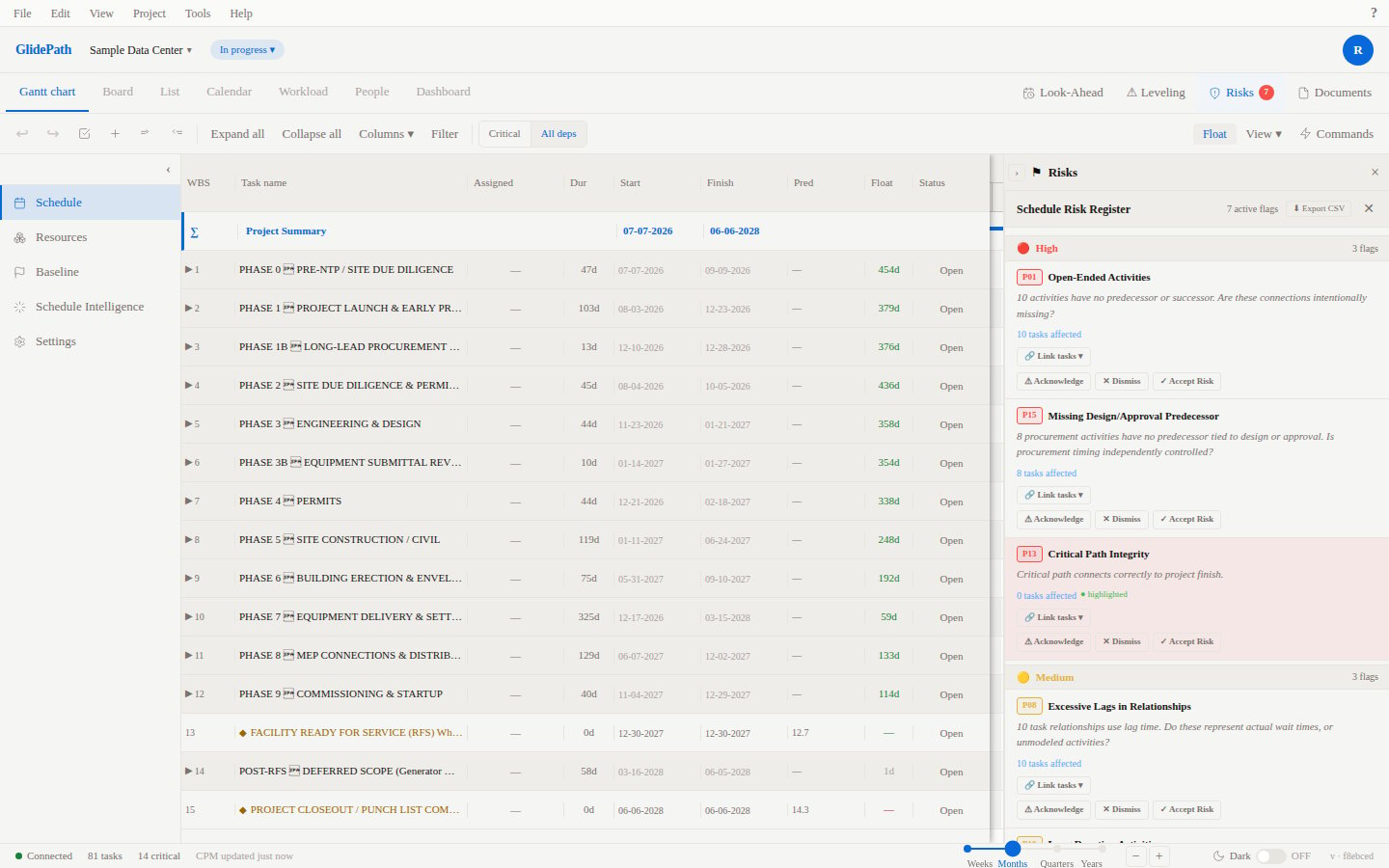
Enable the Pred column in the Gantt task list to see each task’s predecessors inline:- Click Columns in the toolbar
- Check Predecessors
- Each task row shows its predecessor IDs (e.g.,
3FS,7SS+2d)
Screenshot