Print and Export
Share project information by printing the Gantt chart or exporting dashboard and reports to PDF or image format.Feature Spec Reference
Module 13 — PrintPrinting Gantt Chart
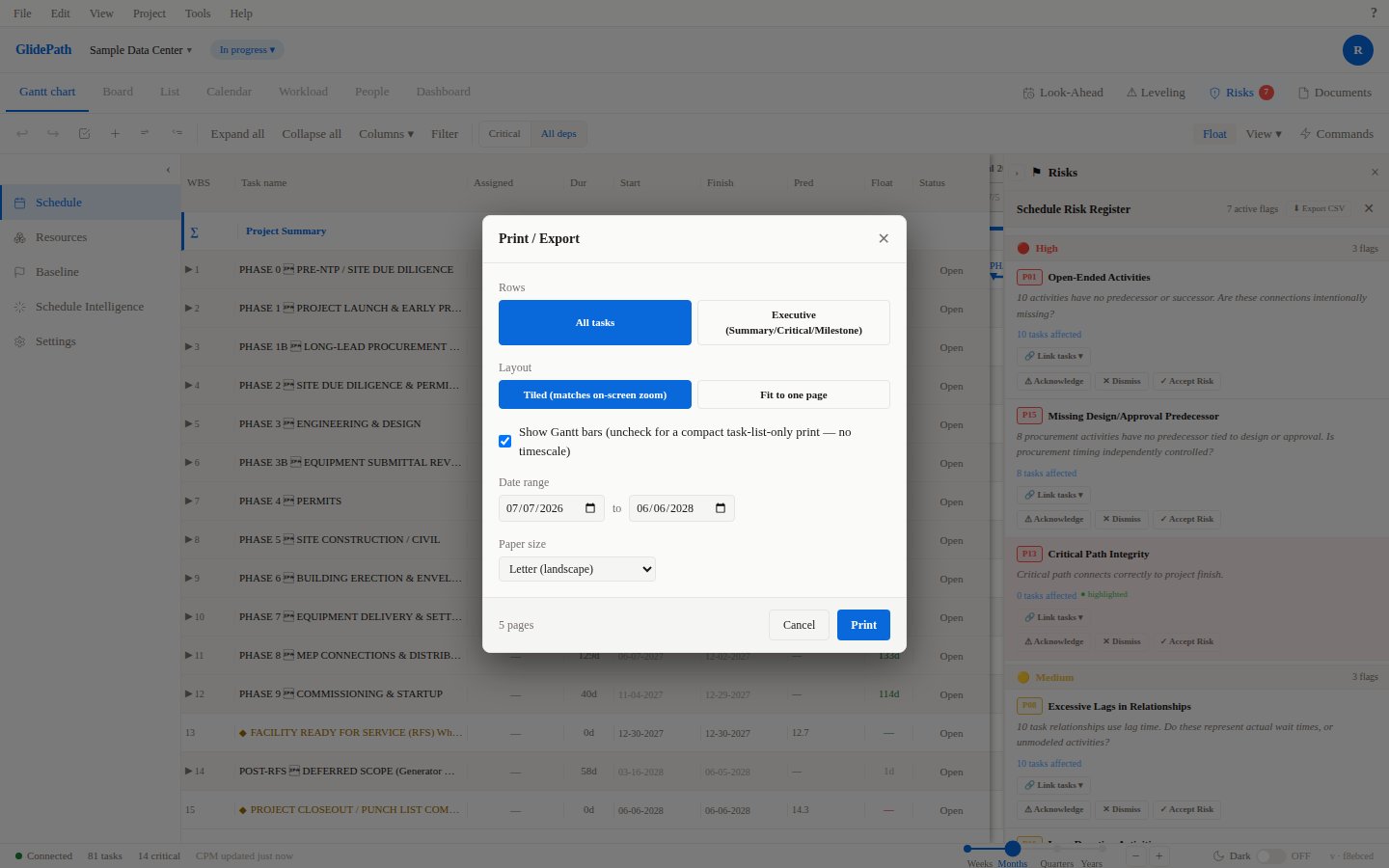
Open Print Dialog
- Open the Gantt Chart view
- Click the Print button (printer icon) in toolbar or press Ctrl+P
- Print dialog opens
Print Options
- Paper Size: Letter, A4, Legal, A3 (custom)
- Orientation: Portrait, Landscape
- Color: Color, Grayscale
- Page Range: All pages or specific range
- Scale: Fit to page, scale to %, custom scale
- Include: Task list only, timeline only, or both
Print Layout
- Multi-page: Long schedules print across multiple pages
- Page breaks: Intelligently break between task groups or at week boundaries
- Legend: Critical path, float, dependencies explained in footer
Preview
Before printing, review Print Preview:- See how the chart will break across pages
- Adjust scale or orientation if needed
- Verify task subset and columns
Export to PDF
- Click Export in toolbar
- Select PDF format
- Choose content:
- Gantt chart
- Dashboard
- Look-Ahead report
- Risk Register
- Select options (color, page size, etc.)
- Click Export
- PDF downloads to your computer
Export to Image
Export individual views as images:- Click Export in toolbar
- Select Image (PNG or JPEG)
- Select the view (Gantt chart, dashboard, etc.)
- Image downloads to your computer
Screenshot