Editing Task Details
Each task in GlidePath has multiple properties that control its behavior in the schedule. This guide covers all editable fields and two editing methods: in-place cell editing and the Task Detail Panel.Feature Spec Reference
Module 2.2 — Edit TaskModule 2.6 — Task Fields
Task Detail Panel
The Task Detail Panel (right side of Gantt chart) opens when you select a task. It displays all editable fields: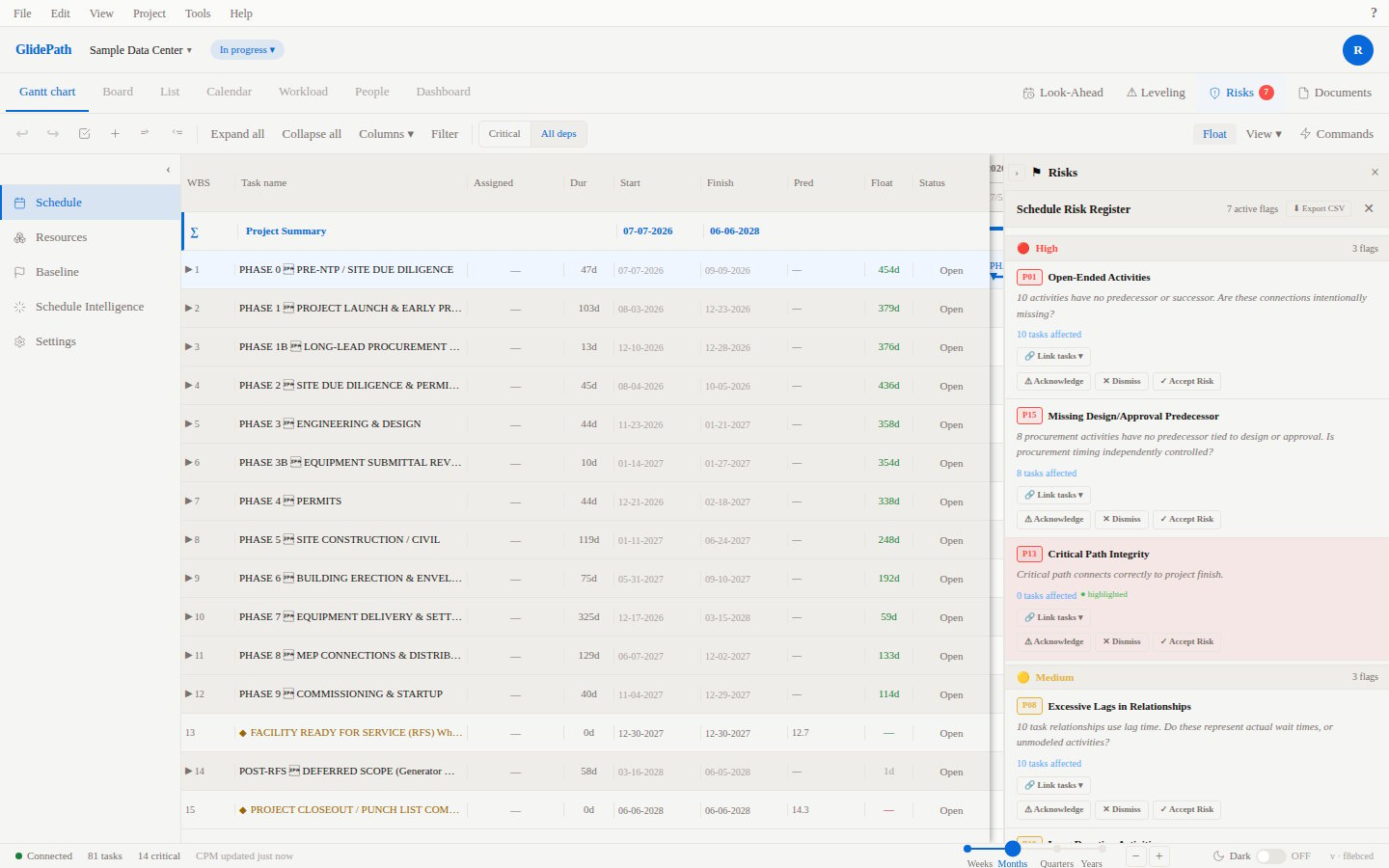
Core Fields
Name (Required)- Task description (1–200 characters)
- Example: “Structural Steel Installation”
- Optional unique identifier for the task
- Useful for linking to external systems
- Example: “STRUC-001”
- How long the task takes (in days)
- Automatically converted to hours based on Hours Per Day project setting
- Can be decimal (e.g., 2.5 days = 2.5 days)
- When the task begins
- Can be constrained by Constraint Type or dependencies
- Date picker interface for easy selection
- When the task completes
- Auto-calculated from Start Date + Duration (for ASAP tasks)
- Editable if Constraint Type is set (SNLT, FNLT, etc.)
- Percentage of task completion
- Used for earned value calculations
- Visual indicator on Gantt chart bar
- Controls how the CPM engine schedules this task
- Options: ASAP, ALAP, SNLT, SNLT, FNLT, FNLT, MSO, MSF
- See Constraints Deep Dive for detailed explanations
- Date picker for constraints like “Start No Later Than”
- Only visible when applicable constraint type is selected
- Free-text field for task description, instructions, or context
- Searchable for finding related tasks
Cost Fields
Budgeted Cost- Expected cost for this task
- Used for budget tracking and earned value
- Costs incurred so far
- Updated manually or via integration
- Cost per unit (per day, per hour, etc.)
- Used for auto-calculating cost from progress
Editing Methods
In-Place Cell Editing
Click any cell in the Gantt chart task list to edit directly:- Click the cell
- Type or select a new value
- Press Enter to confirm or Escape to cancel
Task Detail Panel Editing
For comprehensive editing with all fields visible:- Select the task (click on the Gantt bar or row)
- The Task Detail Panel opens on the right
- Edit any field
- Changes auto-save (no explicit Save button needed)
Task Field Defaults
When you create a new task, these defaults apply (customizable in preferences):- Start Date: Today
- Duration: 1 day
- Progress %: 0%
- Constraint Type: ASAP
- Work Week: Project default (Module 5)
Special Task Types
Summary Tasks (Parent Tasks)
- Created by indenting child tasks under a parent task
- Start Date: Auto-calculated from earliest child start date
- Finish Date: Auto-calculated from latest child finish date
- Duration: Auto-calculated rollup
- Cannot be manually edited — dates are driven by children
Milestones
- Tasks with Duration = 0 (zero days)
- Rendered as a diamond shape on the Gantt timeline
- Used to mark key dates: project kickoff, phase completion, client review, etc.
Tasks with Constraints
- Tasks with a Constraint Type other than ASAP
- Constraint Date field becomes active for date-based constraints
- CPM recalculation respects constraint dates
Next Steps
- Organizing Tasks with WBS — Build a task hierarchy
- Milestones and Constraints — Create special task types
- Creating Dependencies — Link tasks together
Tip: Use the Task Detail Panel when adding complex information like notes, costs, or constraints. Use in-place editing for quick updates to name, duration, or dates.