Primavera P6 XER Import
Import projects from Primavera P6 by exporting as .xer format and using GlidePath’s P6 importer.Feature Spec Reference
Module 1.10 — Import from P6 XERExporting from Primavera P6
Step 1: Export from P6
- In Primavera P6, open your project
- File → Export
- Select XER Format (.xer)
- Choose scope: single project or multiple projects
- Save the file
Step 2: Import into GlidePath
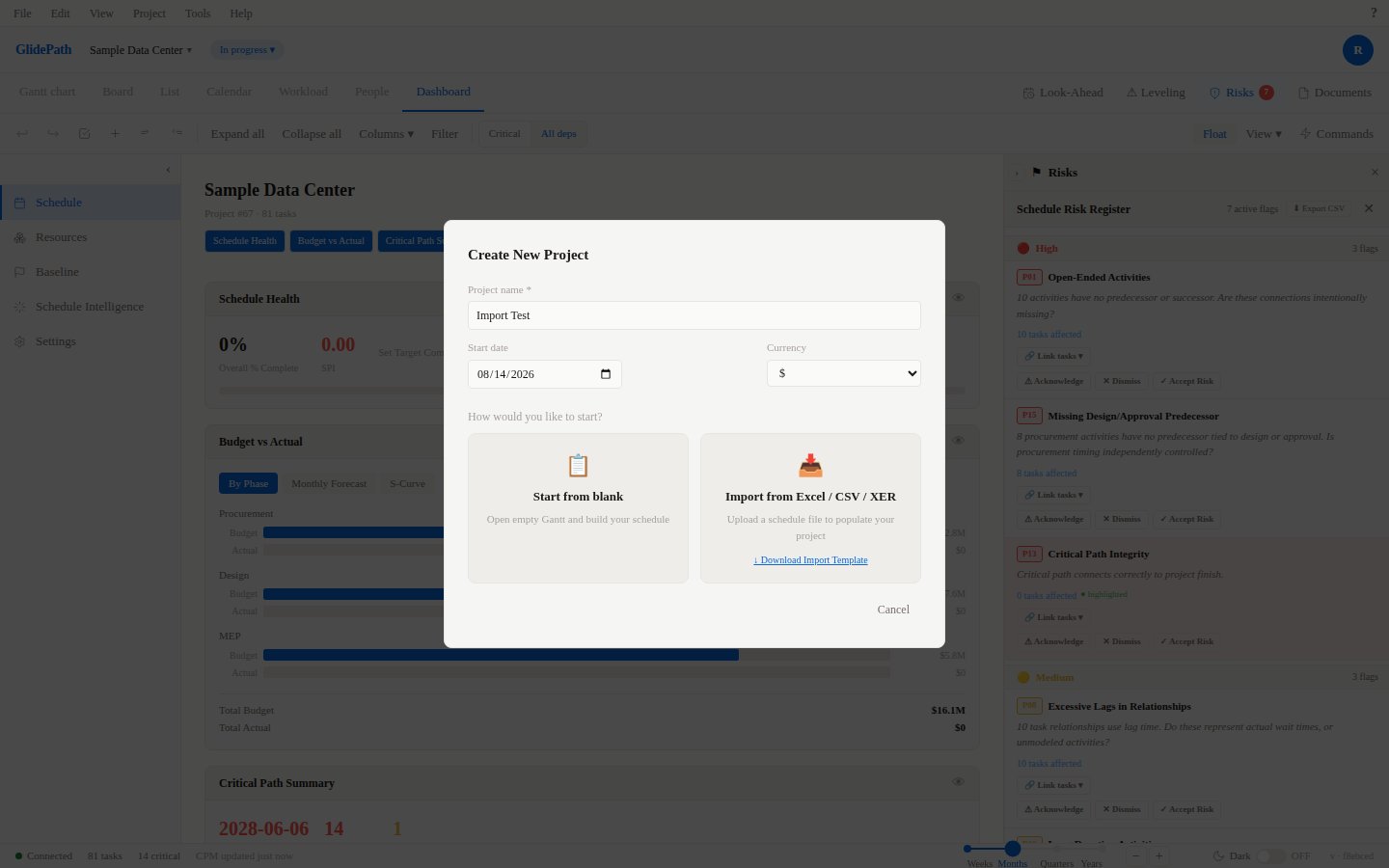
- Open GlidePath Import dialog
- Select Primavera P6 format
- Upload the .xer file
- Column mapping happens automatically
- Review import results
Field Mapping
GlidePath automatically maps these P6 fields:What Gets Imported
✓ Task structure and WBS hierarchy✓ Activity IDs (P6 unique identifiers)
✓ Durations (converted from hours)
✓ Start and finish dates
✓ Dependencies (FS, SS, FF, SF relationships)
✓ Constraints (ASAP, ALAP, date constraints)
✓ Progress % (% Complete)
✓ Notes
✓ Resource assignments
✓ Project calendars (working days, holidays)
What Doesn’t Get Imported
✗ LOE (Level of Effort) tasks — imported as standard tasks✗ Resource curves — basic assignment only
✗ Cost accounts — not mapped
✗ Baselines — can be re-captured in GlidePath
✗ Custom UDF fields
✗ Budget assignments
Known Considerations
LOE Tasks
P6 “Level of Effort” tasks are simplified to standard tasks with duration = actual duration elapsed. You may need to adjust durations after import.Resource Calendars
Resource calendars from P6 are imported, but individual resource availability may need adjustment in GlidePath (Module 9).Duration Conversion
P6 stores durations in hours; GlidePath converts based on your project’s Hours Per Day setting. Verify this is set correctly before import.Screenshot
Tips
- Verify calendar: Check that Hours Per Day matches your P6 project setup
- Spot-check dependencies: Review critical path and key dependencies after import
- Test with subset: Import a smaller project first to validate mapping