Exporting Projects
Export your GlidePath project data to CSV for offline work, archiving, or re-import.Feature Spec Reference
Module 1.8 — Export to CSVExporting to CSV
Step 1: Open Export Dialog
- From Gantt Chart view, click Export button
- Select CSV format
Step 2: Choose Export Scope
- All tasks: Export every task in the project
- Visible tasks only: Export only tasks shown on screen (respects filters)
- Selected tasks: Export only highlighted tasks
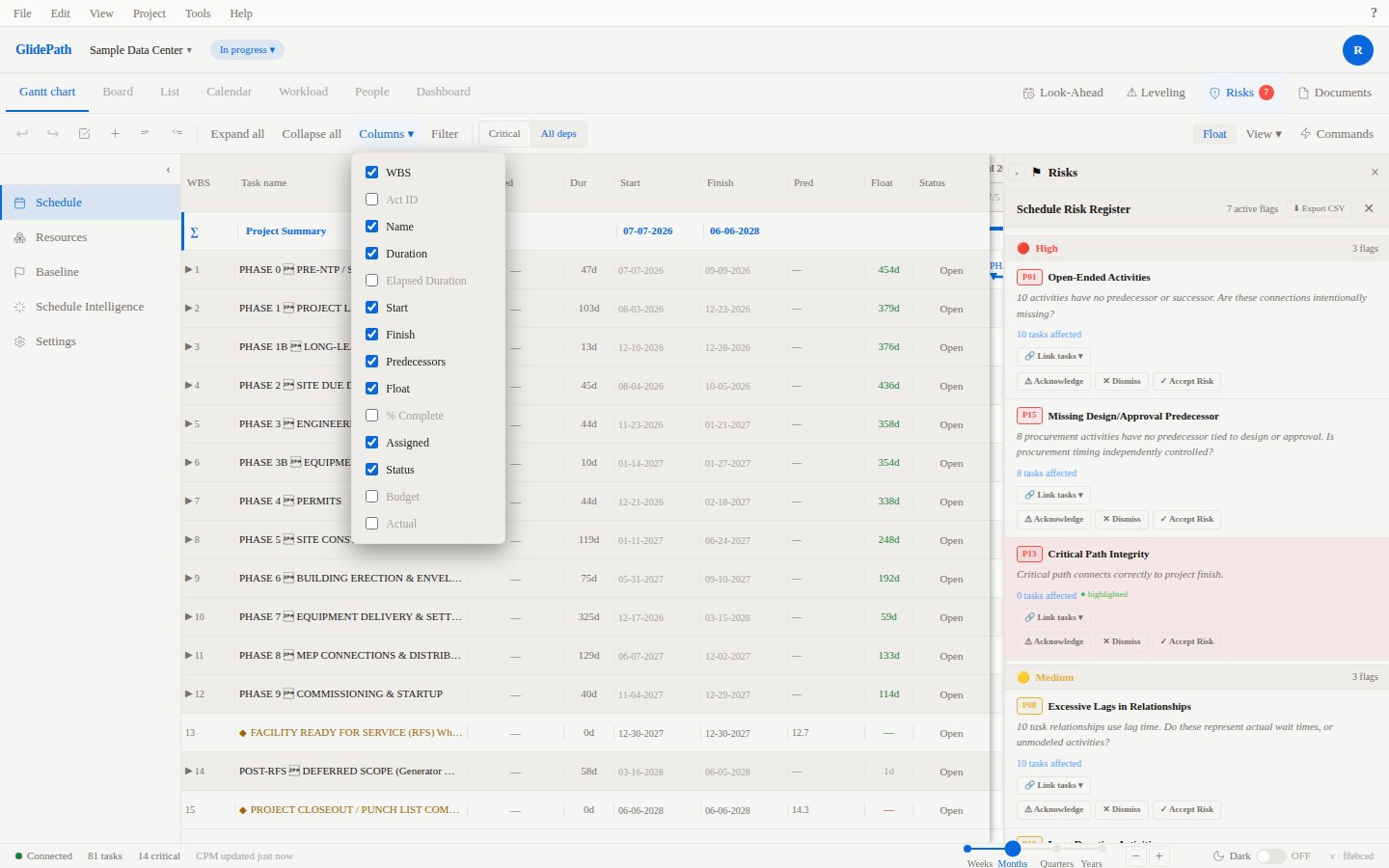
Step 3: Select Columns
Choose which columns to include in export:- Task Name ✓ (always included)
- Activity ID ✓
- WBS ✓
- Duration ✓
- Start Date ✓
- Finish Date ✓
- Progress % ✓
- Constraint Type ✓
- Constraint Date ✓
- Notes ✓
- Resource Names ✓
- Cost ☐ (optional)
Step 4: Export
- Review selected columns
- Click Export
- CSV file downloads to your computer (e.g.,
GlidePath-ProjectName-export.csv)
CSV Format
The exported CSV has:- Header row: Column names (Task Name, Duration, Start Date, etc.)
- Data rows: One task per row
- Comma-separated values: Compatible with Excel, Google Sheets, etc.
Example Export
Common Export Workflows
Workflow 1: Offline Editing
- Export to CSV
- Open in Excel
- Edit durations, dates, add notes
- Save as CSV
- Re-import into GlidePath (updates existing tasks or creates new ones)
Workflow 2: Stakeholder Report
- Filter Gantt chart to critical tasks only
- Export visible tasks to CSV
- Email to project sponsors for review
Workflow 3: Archiving
- At project completion, export full schedule
- Save CSV with date stamp (e.g.,
Project-Final-Schedule-Jan2026.csv) - Store in project archive
Workflow 4: Compare Versions
- Export current schedule to CSV
- Export previous version to CSV
- Use Excel to compare changes (durations, dates, scope)
Screenshot
Tips
- Include all key columns: Don’t skip columns you might need later
- Date format: CSV uses your locale date format (MM/DD/YYYY in US)
- Dependencies not included: Export doesn’t include task dependencies; you’ll need to re-create them on re-import
- Metadata: Notes and custom fields are preserved in export