Using Logic Trace View
Feature Spec Reference
Module 6 — Gantt View (Logic Trace sub-feature)What It Is and Why It Matters
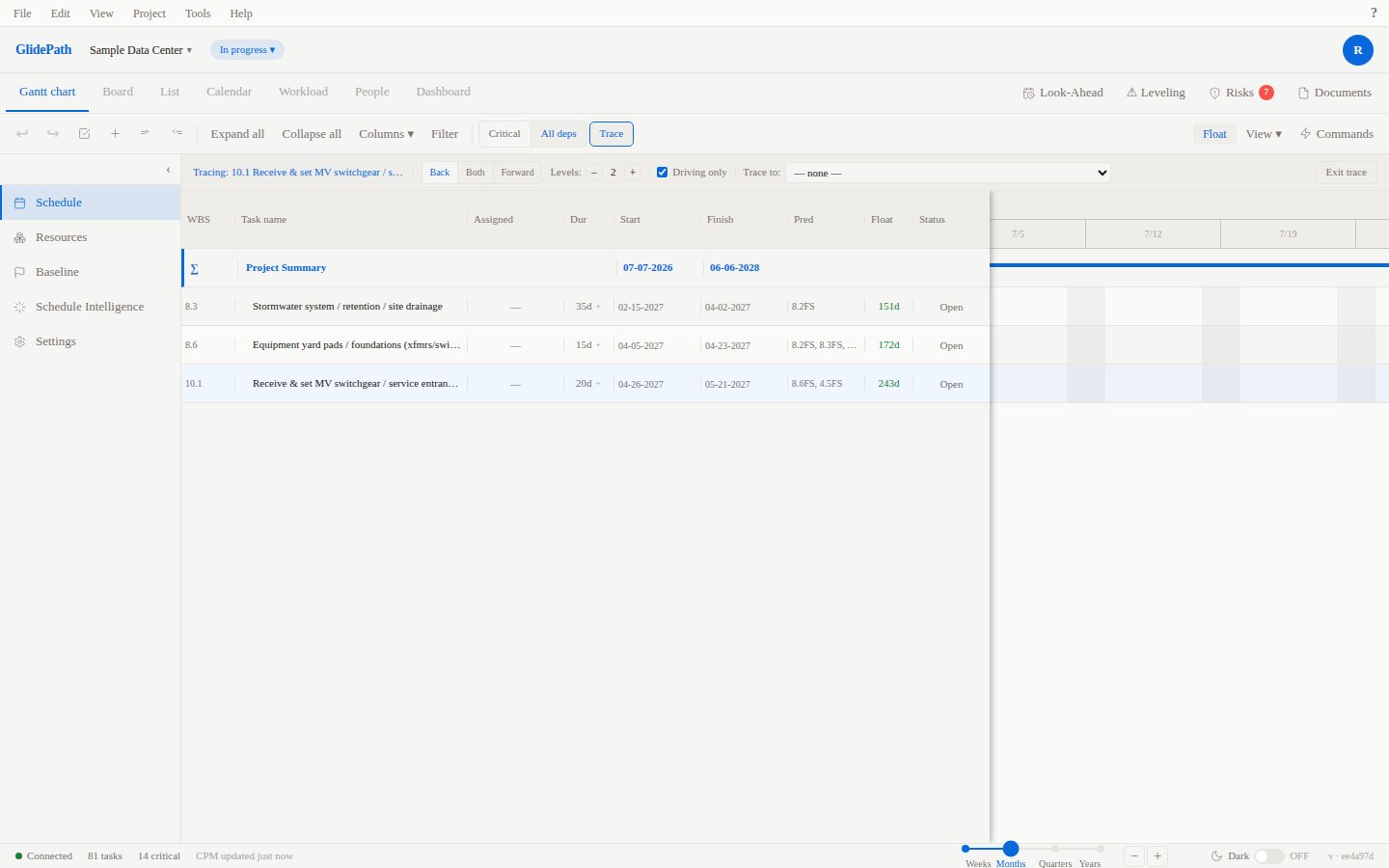
A real data center schedule has hundreds of tasks. When a finish date slips, the relevant dependency chain — the handful of tasks that actually connect one end to the other — is buried inside all of them. Scrolling through 243 rows looking for relationships is slow and error-prone. Logic Trace filters the Gantt to just the tasks in the selected task’s dependency chain and re-sequences them contiguously, ordered by start date. A chain scattered across two hundred rows collapses into a readable run of a dozen. You see the sequence, the dates, and the dependency lines in one screen.How This Differs from Other Tools
Most project management tools treat dependency tracing as a supplemental view alongside the schedule:- Primavera P6 Trace Logic opens a separate network pane beneath the Gantt. The chain is visible, but it lives in a different panel and uses a different layout from the schedule you’re working in.
- MS Project Task Path highlights predecessor and successor tasks in place, inside the full unfiltered task list. Related tasks are colored, but unrelated tasks remain visible between them, making long chains hard to follow.
How to Enter Trace Mode
- Click any task row in the Gantt to select it.
- Click the Trace button in the Gantt toolbar (it sits next to the Critical Path and dependency filter controls).
The Control Strip
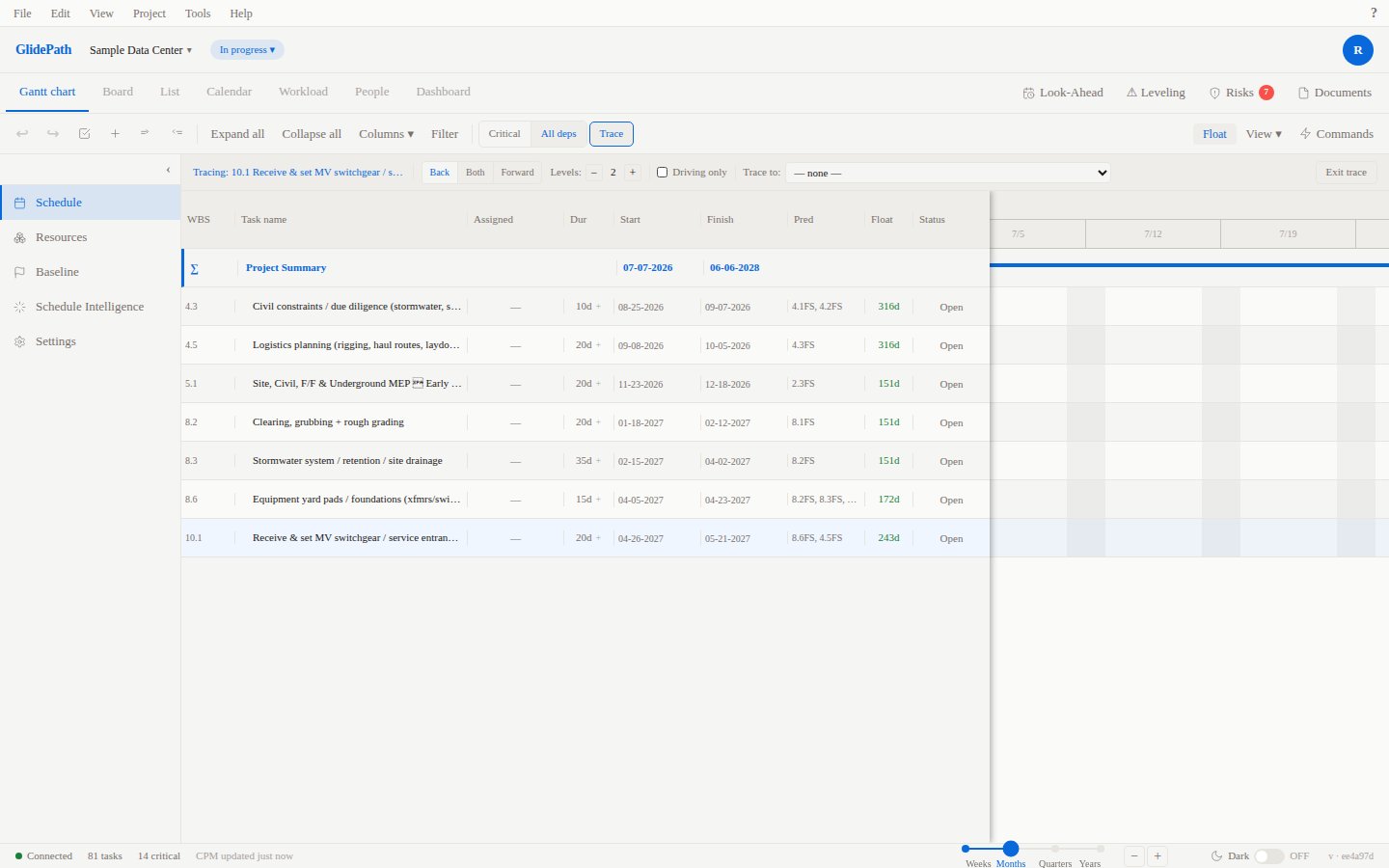
When trace mode is active, a control strip appears below the toolbar with the following controls:
The root task label (“Tracing: WBS Name”) is shown at the left of the strip throughout.
Driving Only — The Core Concept
Every predecessor relationship has a date. When a task has multiple predecessors, only one of them actually determines when the task can start — the one whose finish date is the latest, leaving the least float before the task begins. That predecessor is driving: it is actively setting the task’s start date. The others finish early enough that they don’t constrain it. The distinction is computed from the schedule, not stored as a permanent attribute. If the schedule changes, which predecessor is driving can change too. Always re-run the trace after a reschedule if you want current results. When Driving only is ON (the default), each hop in the trace follows only the driving predecessor, producing the tightest chain — the path where every link is actually constraining the next. When it is OFF, all predecessors at each hop are included, which can be useful when you want to see the full dependency web rather than just the controlling path. Note: ties are possible. If two predecessors produce identical candidate start dates for a successor, both are treated as driving.Read-Only Mode
All task editing is blocked while trace mode is active. You cannot edit cell values, drag bars, reorder rows, indent, outdent, add tasks, or delete tasks. Keyboard navigation (Up/Down arrow) still works for moving between rows. This is intentional: a reschedule triggered mid-trace would invalidate the WBS ordering and driving-relationship computation the trace is built on. Exit trace mode first, make your edits, then re-enter trace mode.Other Behaviors
Collapse state is ignored. If a summary task is collapsed before you enter trace mode, chain members inside that collapsed row still appear in the trace. Trace mode bypasses collapse state entirely. Trace mode is not persistent. Hard-refreshing the page returns you to the normal Gantt. Trace mode is session state only and is deliberately excluded from saved preferences.Worked Example — Sample Data Center
Root task: 10.1 (WV-049) — Receive and set MV switchgear / service entrance equipment Settings: Direction: Back, Levels: 2 Task 10.1 has two predecessors at Level 1:- 8.6 (WV-038) — finishes 2027-04-23; task 10.1 starts 2027-04-26. A 3-day gap.
- 4.5 (WV-019) — finishes 2026-10-05; task 10.1 starts 2027-04-26. Over six months of float before 10.1 needs it.